Search Console to BigQuery: How to Export Your Data and Query It with SQL
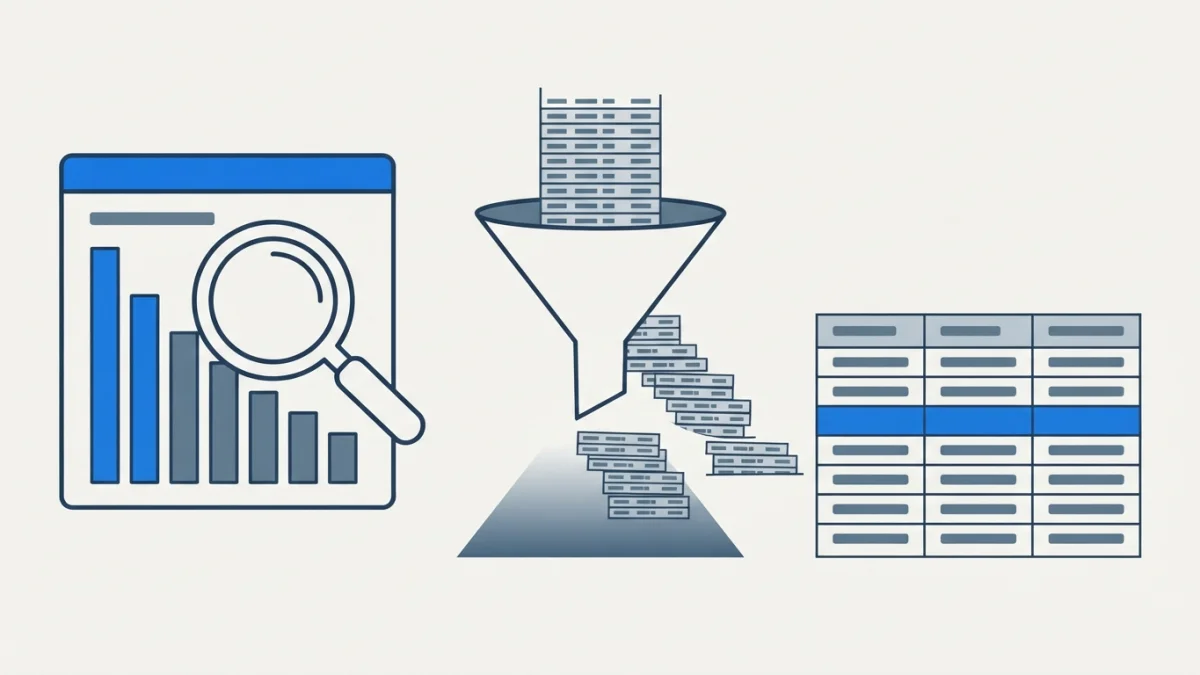
Table of contents
The Search Console BigQuery export stores every performance row the report trims away, every day, and lets you query it with SQL. Here is how to set it up, which tables it creates, and what it actually costs.
What the Search Console BigQuery Export Actually Is (and When It's Worth It)
Search Console shows you a sample. The bulk export sends all of your property's performance data to BigQuery daily, without the row limit the report has. If you prefer the visual route, an SEO dashboard with Data Studio and Search Console is the no-code path.
The Limit It Removes: Daily Rows in the Report
The Search Analytics API accepts a rowLimit from 1 to 25,000 rows, 1,000 by default, and you paginate with startRow. That is a window, not an archive. The bulk export skips that ceiling and is built for sites with tens of thousands of pages or daily queries.
When It's Not Worth It (Most of the Time)
Under a thousand URLs with a weekly review, it probably does not pay off: you add a Cloud project, billing and maintenance to look at the same twenty queries. It only makes sense if you need a long history and detail per URL and query.
What Doesn't Come Through: Anonymized Queries
Everything is exported except anonymized queries, which Google filters for privacy. They arrive with an empty query and is_anonymized_query set to true; if you sum without filtering, that ghost row is often the biggest one on your property.
Before You Start: The Google Cloud Project
Billing Enabled and the Two APIs You Need
You need a Google Cloud project with billing enabled and, inside it, the BigQuery API and the BigQuery Storage API turned on. Without billing, the export fails on day one.
The Service Account That Writes to Your Project and Its Two Roles
Google writes through search-console-data-export@system.gserviceaccount.com, which needs two roles: BigQuery Job User to run jobs and BigQuery Data Editor to create and write tables. With only one of them, the setup is accepted and the export dies later.
Only the Property Owner Can Turn It On
The switch is reserved for the verified owner in Search Console. A user with full permission sees the panel but cannot start or stop the export; if you work for a client, ask them to enable it or to make you an owner.
Setting Up the Export in Search Console, Step by Step
Project ID, Not Project Number (the Most Common Mistake)
The form asks for the project identifier, and here is the most repeated error: enter the project ID (the short name, like my-project-123), never the numeric project number. The official setup guide stresses it in bold because the number looks valid.
Dataset Name and Location: You Choose Once
The default dataset is called searchconsole and always starts with that string. If you export several properties into the same project, each one needs its own dataset: two properties cannot share a destination. The location is not easy to change later.
What Happens in the First 48 Hours
The first export arrives up to 48 hours after setup and includes data from the day you enabled it. It does not backfill: for earlier history you have to use the API or saved reports.
The Three Tables That Show Up in BigQuery
searchdata_site_impression: the Property-Level View
It aggregates performance at property level. Key fields: data_date (Pacific time), site_url, query, country as a three-letter ISO code, search_type (web, image, video, news, discover, googleNews), device, impressions, clicks and sum_top_position. For domain properties, site_url arrives as sc-domain:example.com.
searchdata_url_impression: the URL and Search-Appearance View
This is the working table for SEO: it adds url, is_anonymized_discover and is_* booleans for rich appearances, such as is_tpf_faq. Watch the position field: here it is sum_position, not sum_top_position. Mix them up and your queries quietly return zeros.
ExportLog: the Watchdog Nobody Checks
It records successful exports with agenda, namespace, data_date, epoch_version and publish_time; there are usually two rows per day because each table ships separately. Failed attempts are not logged here, and epoch_version goes up when Google corrects a day's data.
Why Rows Repeat and Why You Always Need to Aggregate
Search Console accumulates data incrementally and exports it uncompressed, so keys repeat. Reading a single row lies: the official table reference shows three rows for the same day with 1,000, 200 and 5,000 impressions, and the real total is 6,200. Always use SUM.
Three SQL Queries That Are Actually Useful
Daily Series With CTR and Average Position (Position Is Zero-Based)
SELECT
  data_date AS day,
  SUM(impressions) AS impressions,
  SUM(clicks) AS clicks,
  SAFE_DIVIDE(SUM(clicks), SUM(impressions)) AS ctr,
  SAFE_DIVIDE(SUM(sum_top_position), SUM(impressions)) + 1 AS avg_position
FROM `your_project.searchconsole.searchdata_site_impression`
WHERE search_type = 'web'
  AND data_date BETWEEN DATE_SUB(CURRENT_DATE(), INTERVAL 28 DAY) AND CURRENT_DATE()
GROUP BY day
ORDER BY day DESC;
The real average position sums sum_top_position, divides by impressions and adds 1 because positions are stored from zero. SAFE_DIVIDE avoids the division-by-zero error on days without impressions.
Queries With Impressions and Zero Clicks: the Opportunity List
SELECT
  query,
  SUM(impressions) AS impressions,
  SUM(clicks) AS clicks,
  SAFE_DIVIDE(SUM(sum_top_position), SUM(impressions)) + 1 AS avg_position
FROM `your_project.searchconsole.searchdata_url_impression`
WHERE search_type = 'web'
  AND query != ''
  AND data_date BETWEEN DATE_SUB(CURRENT_DATE(), INTERVAL 28 DAY) AND CURRENT_DATE()
GROUP BY query
HAVING clicks = 0 AND impressions >= 100
ORDER BY impressions DESC
LIMIT 100;
The query != '' filter removes anonymized queries. What remains is a list of topics where you already show up and nobody clicks: candidates for a new title and meta description, not for new content.
Pages Losing Ground Against the Previous Four Weeks
WITH periods AS (
  SELECT
    url,
    IF(data_date >= DATE_SUB(CURRENT_DATE(), INTERVAL 28 DAY), 'current', 'previous') AS period,
    SUM(clicks) AS clicks
  FROM `your_project.searchconsole.searchdata_url_impression`
  WHERE search_type = 'web'
    AND data_date BETWEEN DATE_SUB(CURRENT_DATE(), INTERVAL 56 DAY) AND CURRENT_DATE()
  GROUP BY url, period
)
SELECT
  url,
  SUM(IF(period = 'previous', clicks, 0)) AS clicks_before,
  SUM(IF(period = 'current', clicks, 0)) AS clicks_now,
  SUM(IF(period = 'current', clicks, 0)) - SUM(IF(period = 'previous', clicks, 0)) AS difference
FROM periods
GROUP BY url
HAVING clicks_before >= 20
ORDER BY difference ASC
LIMIT 50;
This is the diagnosis the report never gives you: pages with enough baseline that lost clicks. If the drop is site-wide, work through a step-by-step traffic drop diagnosis first. The star use case for this dump is crossing it with your server logs: what Google says it sees versus what it really crawled.
Costs and Quotas: How to Avoid a Surprise Bill
The Free Tier: 10 GiB of Storage and 1 TiB of Queries per Month
BigQuery gives you the first 10 GiB of monthly storage and the first TiB of queried data per month for free. A mid-sized site takes years to get close, as long as you scope your queries. Check the current pricing before automating anything that scans millions of rows an hour.
Partition Expiration (Never Less Than 14 Days)
Data piles up in your project forever, and that costs money. Set a partition expiration: the minimum allowed is 14 days, and if it expires earlier the export fails.
Always Filter by Date: the Table Is Partitioned Daily
Filter on data_date in every query. Because the table is partitioned by day, the filter cuts the bytes read and the bill. An unfiltered query over two years of data burns the free tier in one afternoon.
When the Export Fails: The Errors You'll See
The Four Configuration Ones: Permissions, Billing, Schema, Location
The most common messages are missing permissions, missing billing, BigQuery API not enabled and schema mismatch. Add a dataset already used by another export and a partition expiration that is too short. Schema mismatch shows up when someone edits the columns by hand.
Retries Have an Expiration Date
On a non-transient error, Google retries the next day with the pending data, keeps it for about seven days and then discards it. After roughly a month of consecutive failures, the export stops entirely.
The Test Button and Cloud Logs
The settings panel lets you start, stop, restart and check the last attempt; when you stop it, it can take up to 24 hours to halt and existing tables are not deleted. For silent failures, search search-console-data-export in Cloud Logs Explorer.
Checklist to Get It Running Today
- Cloud project with billing and both BigQuery APIs enabled.
- Service account with BigQuery Job User and Data Editor.
- Correct project ID and a dataset starting with
searchconsole. - Partition expiration at 14 days or more.
- Test query scoped by
data_dateand wrapped inSUM. - First check in
ExportLogat the 48-hour mark.
Conclusion: Your Own Data, Not Screenshots
The bulk export does not make you a better SEO by itself: it hands you the full archive so you can ask better questions. Setting it up takes half an hour and one well-made cost decision. In exchange, you stop arguing over a screenshot and start comparing periods with SQL.