How to use Google Trends for SEO: find keywords, measure seasonality, and spot trends
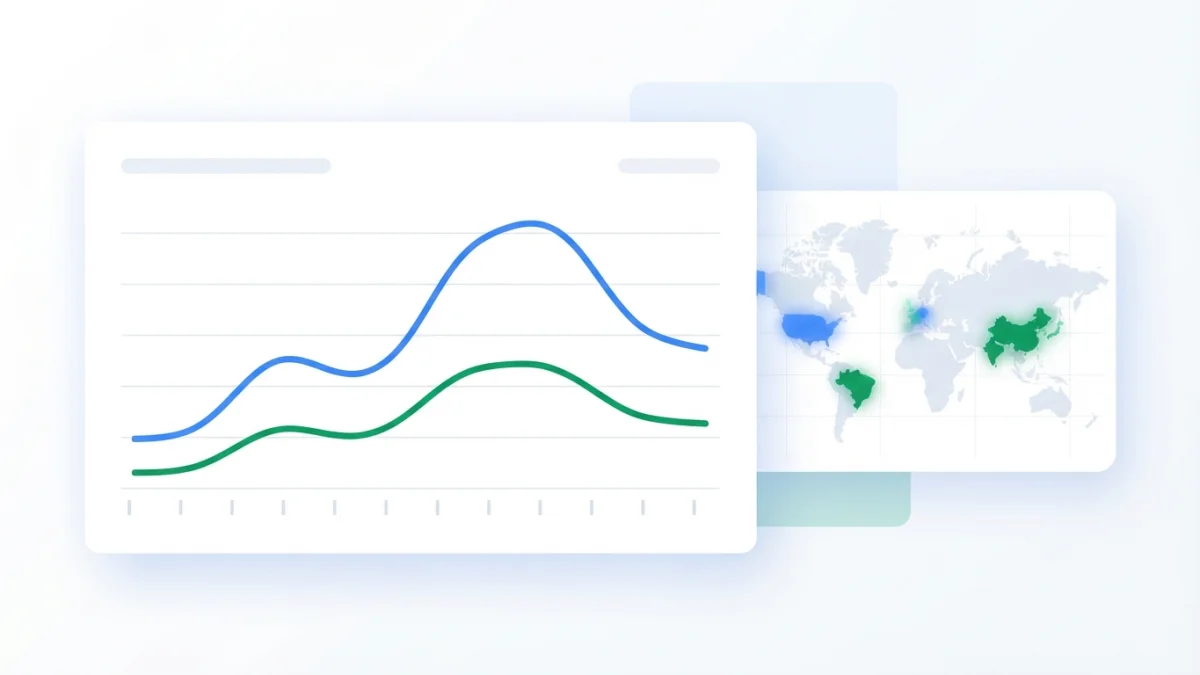
Table of contents
Real demand or just a hunch? Google Trends for SEO shows search interest over time, for free. Learn to compare terms, spot seasonality, and catch trends early, and find out what data it does not give you before you pick your keyword.
What Google Trends is and what it actually measures
Google Trends is a free Google tool that shows search interest for a term over time and by region. You type a word or phrase and get a curve that rises and falls according to the historical demand for that query in the period you choose.
The first thing to understand is that the curve does not represent absolute searches; it is a normalized index. Google scales the data to a range of 0 to 100, where 100 is the peak popularity of the term within the period and geography you selected, and 50 is exactly half of that peak. A value of 80 can mean 200 monthly searches or 200,000: Trends cannot tell the difference.
The tool lets you filter by location (country or region), period (from the last hour up to five years, or a custom range), category, and search type (web, images, news, Google Shopping, or YouTube). Those filters are the key to making any comparison honest.
Relative interest vs search volume: the number myth
The most repeated mistake is reading the scale as a search counter. A line that drops from 100 to 60 does not mean the topic is dying: it can mean a drop from 50,000 to 30,000 monthly searches, which is still a huge volume. Read the curve as a relative trend, not an absolute meter; for real volume you need another source, such as Google Keyword Planner.
Why use Google Trends in your SEO strategy
Adding Google Trends to your SEO strategy gives you four concrete advantages that no other free tool combines in the same way.
- Validate demand before you write. If interest in a topic is flat or growing steadily, there is an audience waiting for content; if the curve has been falling for years, the topic may not deserve your hours.
- Choose between phrasing variants. Trends shows which phrase people actually use. A classic example: "sprint retro" versus "sprint retrospective". The curve tells you which one dominates, and that is the one to optimize for.
- Spot seasonality and get ahead of it. If your topic has a clear annual peak, publish four to six weeks before the maximum so Google has time to index and rank your page.
- Grow your seed list. The related and rising queries sections are a goldmine of subtopics and long-tail keywords to add to your research.
How to compare terms step by step
Comparison is the most useful feature in Trends. Open trends.google.com, go to Explore, and type your first term; then use the Compare button to add more. You can compare up to five groups of terms at once and up to 25 terms per group, according to the official Google documentation.
When you compare, adjust the filters for each term separately. That is the only way to see the same concept in different countries, for example Spain versus Mexico or Argentina, or across different periods. Comparing with mismatched filters produces false conclusions.
Search term vs topic: why it matters
Google distinguishes two comparison types. A search term looks for the literal word, only in the language you type it. A topic groups the concept in any language plus its variants: searching "Londres" as a topic also includes searches for "London". For multilingual SEO you should compare topics, because it avoids false negatives: if your audience searches the concept in several languages, the literal term only shows a fraction of the demand.
Quotation marks, + and - to refine
Trends accepts basic operators. Quotation marks force the exact phrase. The plus sign joins variations or common misspellings, such as "centro + centto", so you see the aggregated demand behind one intention. The hyphen, contrary to popular belief, is ignored: it does not exclude terms. Use quotation marks when you want to confirm an exact variant before deciding your title wording.
How to read the results: map, related queries, and export
Below the main chart there are three blocks that most people ignore and that are worth their weight in gold.
"Interest by subregion" is a map with the geographic breakdown of interest. For local SEO it tells you where to focus your efforts and, for Spanish-speaking markets, whether demand lives mostly in Spain or in Latin America, a data point that changes your content strategy.
Related queries come with two tabs: "Top" (the historical leaders of the period) and "Rising" (the ones climbing, with their percentage). They are an endless source of subtopics and long-tail keywords to grow your seed list. And the export button generates a CSV with the curve data, ideal for comparing several terms in a spreadsheet or including the evolution in a report.
The 2026 update: Gemini in the Explore page
In January 2026 Google integrated Gemini models into the Trends Explore page, as announced by product director Nir Kalush. The visible change is a "Search term suggestions" side panel: you type a phrase about your area of interest and the tool generates and compares up to eight related terms, with ideas to keep exploring.
Use it honestly. Google describes it as experimental: it can show incorrect information, and generated data is retained for about 55 days. Treat it as an initial brainstorm, never as a verdict: any suggested term must be validated against the chart and the manual filters before it enters your keyword list.
What Google Trends does NOT tell you (and how to fill the gap)
Knowing the limits prevents expensive mistakes. Google Trends does not give absolute search volume, it does not tell keyword difficulty, and it does not show SERP context: who ranks, the authority of competing domains, or the dominant intent. On top of that, on fine long-tail queries it returns the dreaded "not enough data", because the statistical sample is too small to normalize.
A layered workflow: Trends is layer one
The correct way is to use it as the first layer of a three-step process.
- Layer 1, Trends: validate that demand exists, choose the right phrasing variant, and detect seasonality.
- Layer 2, volume and difficulty: run the surviving candidates through Google Keyword Planner or other tools such as Ahrefs, Semrush, or Ubersuggest. Here is our guide to choosing the best keywords for your SEO strategy if you want the full process.
- Layer 3, manual SERP analysis: look at what occupies the top positions and honestly assess whether your site can compete on authority and intent.
Common mistakes when using Google Trends
- Reading 50 as "50 searches a month". It is a relative index, not a volume; every later decision would be built on a false foundation.
- Comparing terms with different filters. A different country or period invalidates the comparison. Check that both terms share location, date range, and search type.
- Confusing a one-off spike with a trend. An event or a news story shoots the curve up for days and then disappears. These are the "keyword unicorns": they look huge and vanish the next month. Always look at the twelve-month window.
- Using Trends as your only source. Without volume, difficulty, or SERP context, you are picking keywords blind. Use it as layer one, not as the final answer.
- Ignoring seasonality. Publishing right after the annual peak means waiting eleven months to see real traffic.
Checklist: your first Google Trends session (5 minutes)
- Open trends.google.com and go to Explore.
- Type your main topic and set country and the last 12 months.
- Add two or three variants in Compare and note which one dominates the curve.
- Review the interest-by-subregion map and the "Rising" related queries.
- Export the CSV or save the comparison URL for reuse.
- Add to your seed list the related queries that deserve their own article, such as the ones we already cover on long-tail keywords and opportunity keywords.
- Move to layer 2 (volume and difficulty) before writing a single line.
If you want the full free-tool context, our comparison of the 10 best free SEO tools puts Trends in its place. The official documentation on comparing Trends search terms and its search tips are the primary reference; guides such as Boomranq or Ahrefs provide the updated practical view, and the Gemini in Explore panel is documented in the official help center.